Viewing Reports
Once a report is completed, you can view it in your browser, download it in various formats, or print it.
Finding Your Reports
Report History
All completed reports are stored in your Report History:
- Click "Reports" in the sidebar
- Click "History"
Here you'll see a list of all completed reports with:
- Report name and ID
- Store code and name
- When it was generated
- Number of pages
- File size
Filtering Reports
Use the filter options at the top to narrow down your results:
- Store - Show reports from a specific store
- Report Type - Filter by type of report
- Date Range - Last 24 hours, 7 days, 30 days, etc.
Opening a Report
Click on any report in the History list to open the Report Viewer. You can also click the eye icon in the Actions column.
Report Viewer
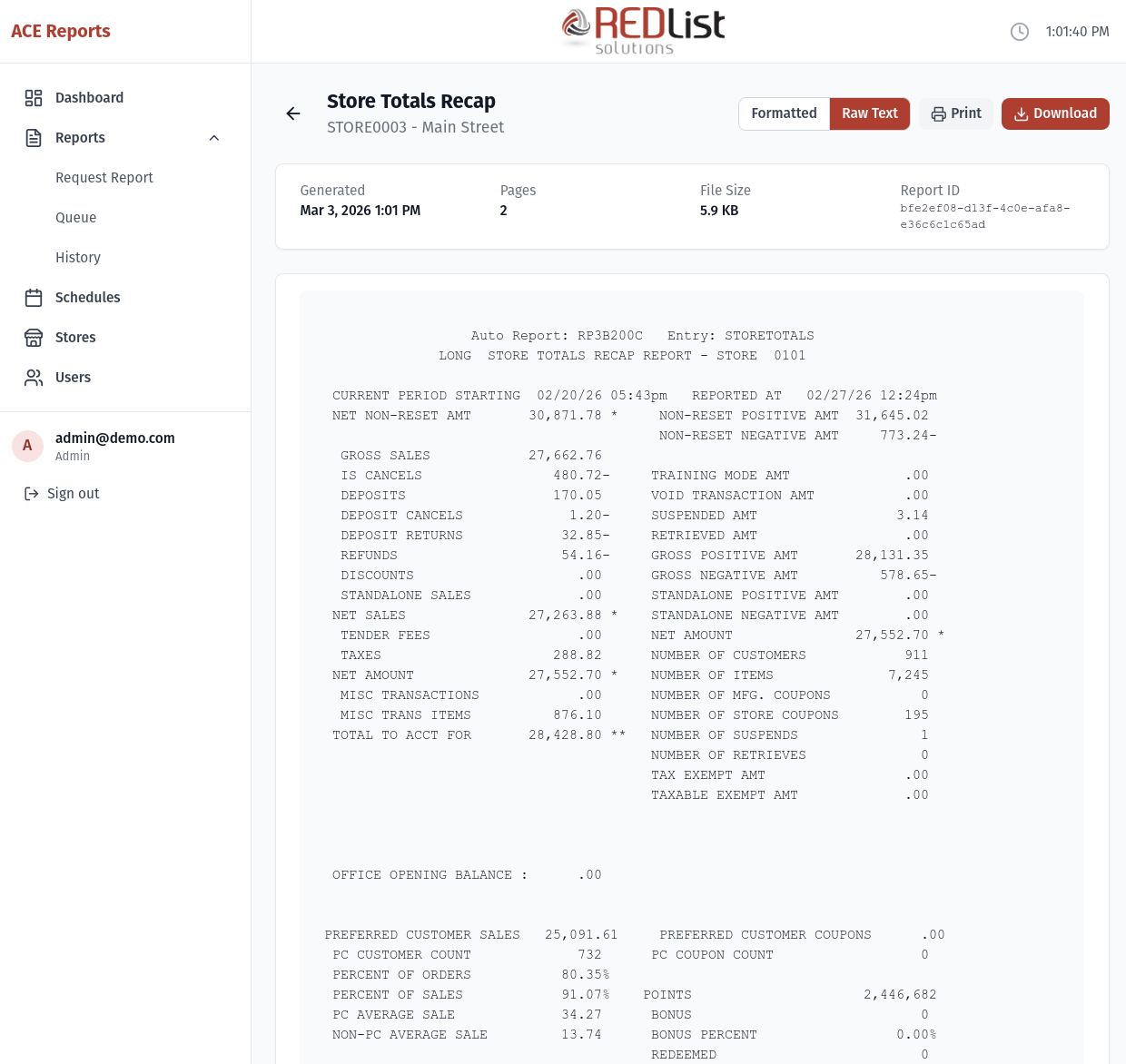
The Report Viewer displays your report with several options:
View Mode Toggle
Switch between two display modes:
- Formatted - Shows the report with nice HTML formatting
- Raw Text - Shows the plain text exactly as it appears on the register
Report Information
At the top of the viewer, you'll see:
- Report name
- Store code and name
- When the report was generated
- Number of pages
- File size
- Report ID (useful for support)
Downloading Reports
Click the "Download" button to save a copy of the report:
| Format | Description | Best For |
|---|---|---|
| HTML | Formatted web page file | Viewing in a browser, archiving with formatting |
| Plain Text | Simple .txt file | Opening in any text editor, importing into other systems |
| Portable document format | Printing, emailing, official records |
Printing Reports
To print a report:
- Open the report in the viewer
- Click the "Print" button
- Your browser's print dialog will open
- Select your printer and print settings
- Click Print
Report Retention
Reports are stored on the server for 14 days by default. After this period, reports are automatically deleted to save storage space.
To keep a report longer than the retention period:
- Download it as PDF or HTML before it expires
- Save it to your computer or shared drive
"No Content Available"
If you see "No Content Available" when viewing a report, this usually means:
- The report is still being processed - wait a moment and refresh
- The report had no data for the selected period
- There was an issue downloading the report content
Try clicking the download button - if the file downloads successfully, the content exists but may have a display issue. Contact support if the problem persists.