Requesting Reports
Learn how to request ACE reports from your stores. You can request reports from one or multiple stores at the same time.
How to Request a Report
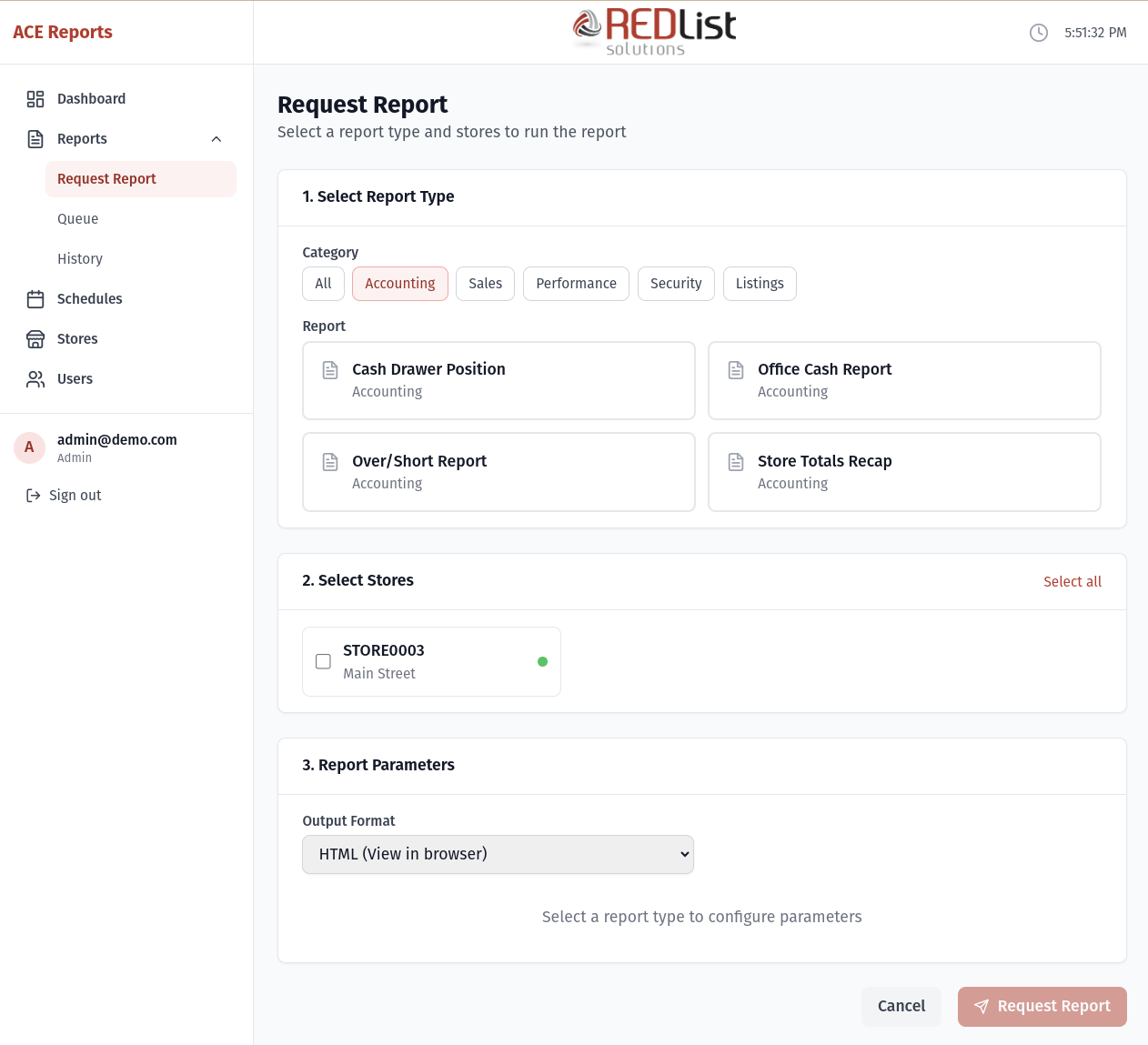
-
Navigate to Request Report
Click "Reports" in the sidebar to expand the menu, then click "Request Report." -
Select a Report Type
Browse the available reports. You can filter by category using the buttons at the top:- Accounting - Office Cash, Over/Short, Cash Drawer, Store Totals
- Sales - Department Totals, Item Movement, Hourly Sales
- Performance - Operator Performance, Terminal Productivity
- Security - Voids, Refunds, Negative Sales, Exception Reports
- Listings - Transaction Log, Tender Listing
-
Select Store(s)
Check the boxes next to the stores you want to run the report for. You can:- Select individual stores by clicking their checkboxes
- Click "Select all" to choose all stores at once
- Look for the green/gray dot to see which stores are online
-
Configure Parameters
Set the report options:- Output Format - Choose HTML (web view), Plain Text, or PDF
- Period - Select which time period you want data for
- Additional options vary by report type
-
Submit the Request
Click "Request Report" at the bottom. If you selected multiple stores, the button will show how many (e.g., "Request Report (3 stores)").
Understanding Report Periods
The Period setting determines which data is included in your report:
| Period | Description | Best For |
|---|---|---|
| Current Short | Today's transactions (since last daily close) | Checking current day activity |
| Previous Short | Yesterday's complete data | Daily review (most common) |
| Current Long | This week's data (not including today) | Week-to-date totals |
| Previous Long | Last week's complete data | Weekly review |
Important: "Current Long" does NOT include today's transactions. If you need today's data, use "Current Short."
Output Formats
Choose the format that best suits your needs:
| Format | Best For |
|---|---|
| HTML | Viewing in your web browser with nice formatting |
| Plain Text | Simple text view, exactly as it appears on the register |
| Printing or saving to share with others |
Requesting from Multiple Stores
One of the most powerful features is the ability to request the same report from multiple stores at once:
- Select your report type and configure parameters
- Check all the stores you need
- Click "Request Report"
The system will create separate report requests for each store. You can monitor them all in the Report Queue.
Tip: Use "Select all" to quickly choose all stores, then uncheck any you don't need.
What Happens After You Submit?
After clicking "Request Report":
- You'll see a success message confirming your request
- You'll be redirected to the Report Queue page
- Your report(s) will appear with "pending" status
- Once a store agent picks it up, status changes to "assigned"
- When complete, the report moves to your History
Offline Stores
You can request reports from offline stores - they'll just wait in the queue until the store comes online. However, for faster results, focus on stores showing as Online.
Common Reports
Daily Operations
- Over/Short Report - See cash variances by operator or terminal
- Department Totals - Sales breakdown by department
- Office Cash Report - Cash accountability summary
Security Review
- Void Report - All voided transactions
- Refund Report - All refunds processed
- Exception Report - Unusual transactions flagged for review
Performance Analysis
- Operator Performance - Sales and productivity by cashier
- Hourly Department Totals - Sales by hour and department