Scheduled Reports
Set up automatic report schedules so important reports run automatically every day, week, or month. Never forget to pull a critical report again!
Viewing Schedules
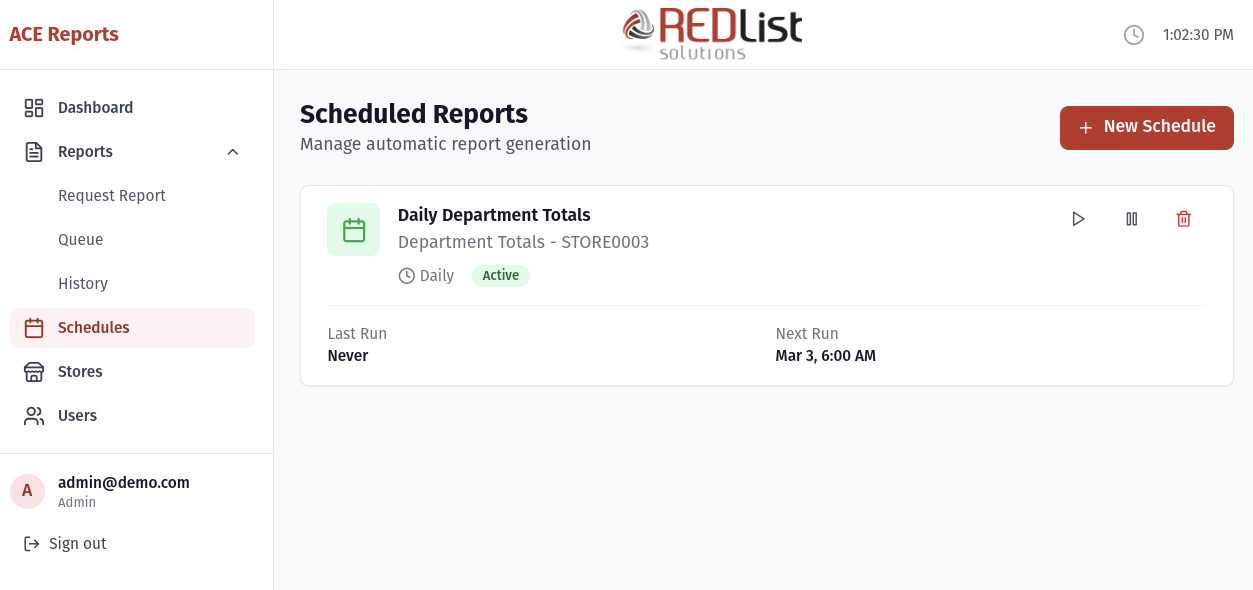
Click "Schedules" in the sidebar to see all configured schedules. Each schedule shows:
- Schedule name
- Report type
- Store(s) it runs for
- Frequency (daily, weekly, monthly)
- Next scheduled run time
- Whether it's active or paused
Creating a Schedule
-
Click "Add Schedule"
Click the blue "Add Schedule" button in the top right corner. -
Name your schedule
Give it a descriptive name like "Daily Over/Short - All Stores" so you can easily identify it later. -
Select the report type
Choose which report you want to run automatically. -
Select store(s)
Choose one or more stores. The report will run for each selected store. -
Set the frequency
Choose how often the report should run:- Daily - Runs every day at the specified time
- Weekly - Runs once a week on the day you choose
- Monthly - Runs once a month on the date you choose
-
Set the time
Choose what time of day the report should run. Consider when stores close and data becomes available. -
Configure report parameters
Set the period and other options just like a manual report request. -
Save the schedule
Click "Create Schedule" to save. The schedule will start running at the next scheduled time.
Schedule Frequency Tips
| Frequency | Good For | Recommended Time |
|---|---|---|
| Daily | Over/Short, Daily Sales, Exception Reports | Early morning (e.g., 6 AM) after stores close |
| Weekly | Weekly Summaries, Department Analysis | Monday morning for previous week's data |
| Monthly | Month-end reports, Performance Reviews | 1st of the month for previous month |
Editing a Schedule
To modify an existing schedule:
- Find the schedule in the list
- Click the edit icon (pencil) in the Actions column
- Make your changes
- Click "Save Changes"
Pausing and Resuming
You can temporarily pause a schedule without deleting it:
- Find the schedule
- Toggle the "Active" switch to off
The schedule will stop running but keep all its settings. Toggle it back on when you're ready to resume.
Running a Schedule Now
To run a scheduled report immediately without waiting for the next scheduled time:
- Find the schedule
- Click "Run Now" in the Actions column
This creates report requests just as if the schedule had triggered normally. The next scheduled run time is not affected.
Deleting a Schedule
To permanently remove a schedule:
- Find the schedule
- Click the delete icon (trash can)
- Confirm the deletion
Viewing Scheduled Report Results
Reports generated by schedules appear in your Report History just like manually requested reports. You can filter by date to find reports from a specific scheduled run.