Store Management
The Stores page lets you manage your store connections, download agent software, and monitor store connectivity.
Note: Store management requires Manager or Admin role.
Stores Overview
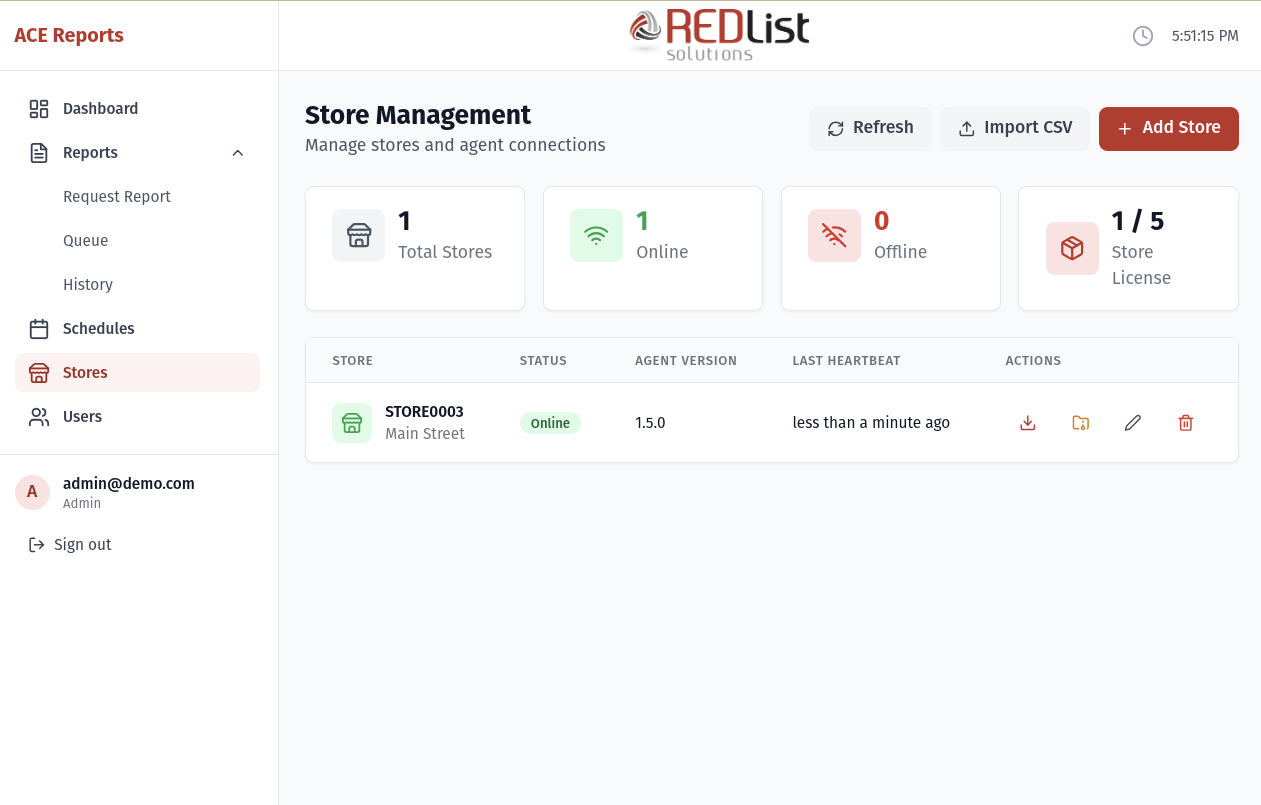
Click "Stores" in the sidebar to access store management. You'll see:
Summary Cards
- Total Stores - Number of stores configured in the system
- Online - Stores currently connected and ready
- Offline - Stores not currently connected
- Store License - How many store licenses you're using vs. available
Store List
The table shows all your stores with:
- Store Code - Unique identifier (e.g., STORE001)
- Store Name - Descriptive name
- Status - Online or Offline
- Agent Version - Version of the agent software running
- Last Heartbeat - When the store last checked in
Adding a New Store
-
Click "Add Store"
Click the blue "Add Store" button in the top right. -
Enter store details
- Store Code - A unique ID like "STORE001" (cannot be changed later)
- Store Name - A friendly name like "Main Street Location"
- Timezone - The store's timezone for scheduling
-
Click "Create Store"
The store will be created and you'll be prompted to download the agent bundle.
Downloading the Agent Bundle
After creating a store, you need to install the agent software on the store's ACE system:
-
Download the bundle
Click "Download Agent Bundle" when prompted after creating the store, or click the download icon next to an existing store. -
Copy to the store
Transfer the ZIP file to the store's 4690 OS system. -
Extract the files
Unzip the bundle to a directory on the store system. -
Follow the README
The bundle includes a README file with installation instructions.
Important: Each bundle download generates a new agent secret. If you download a new bundle, you'll need to reinstall it at the store - the old bundle will stop working.
Importing Multiple Stores
If you need to add many stores at once, use the CSV import feature:
- Click "Import CSV" button
- Prepare a CSV file with columns:
store_code,name,timezone - Upload the file
- Review the import results
- Download the agent secrets CSV (one-time only!)
CSV Format Example
| store_code | name | timezone |
|---|---|---|
| STORE001 | Main Street Location | America/New_York |
| STORE002 | West Side Branch | America/Chicago |
Editing a Store
To modify a store's settings:
- Click the edit icon (pencil) next to the store
- Update the store name or timezone
- Click "Save Changes"
Note: The store code cannot be changed after creation. If you need a different code, delete the store and create a new one.
Collecting Agent Logs
If you're troubleshooting an issue with a store, you can collect logs from the agent:
- Find the store in the list (must be Online)
- Click the folder/archive icon
- Wait for the agent to collect and upload its logs
- Click "Download Logs" when complete
This downloads a ZIP file containing the agent's log files, which can help diagnose issues.
Deleting a Store
To remove a store from the system:
- Click the delete icon (trash can) next to the store
- Confirm the deletion
Warning: Deleting a store will also delete all its report history. This cannot be undone.
Store Connectivity
How Stores Connect
Each store runs a small agent program that:
- Connects to the ACE Report Center server over HTTPS
- Sends a "heartbeat" every 30 seconds to confirm it's online
- Polls for pending report requests
- Runs reports using ACETVREL and uploads results
Offline Stores
A store shows as offline when:
- The agent program is not running
- The store has no internet connection
- Firewall is blocking outbound HTTPS traffic
- The agent has crashed or encountered an error
If a store stays offline unexpectedly:
- Check that the agent service is running on the store
- Verify internet connectivity at the store
- Check firewall settings
- Review the agent logs on the store system