User Management
Administrators can create and manage user accounts, assign roles, and control access to the system.
Viewing Users
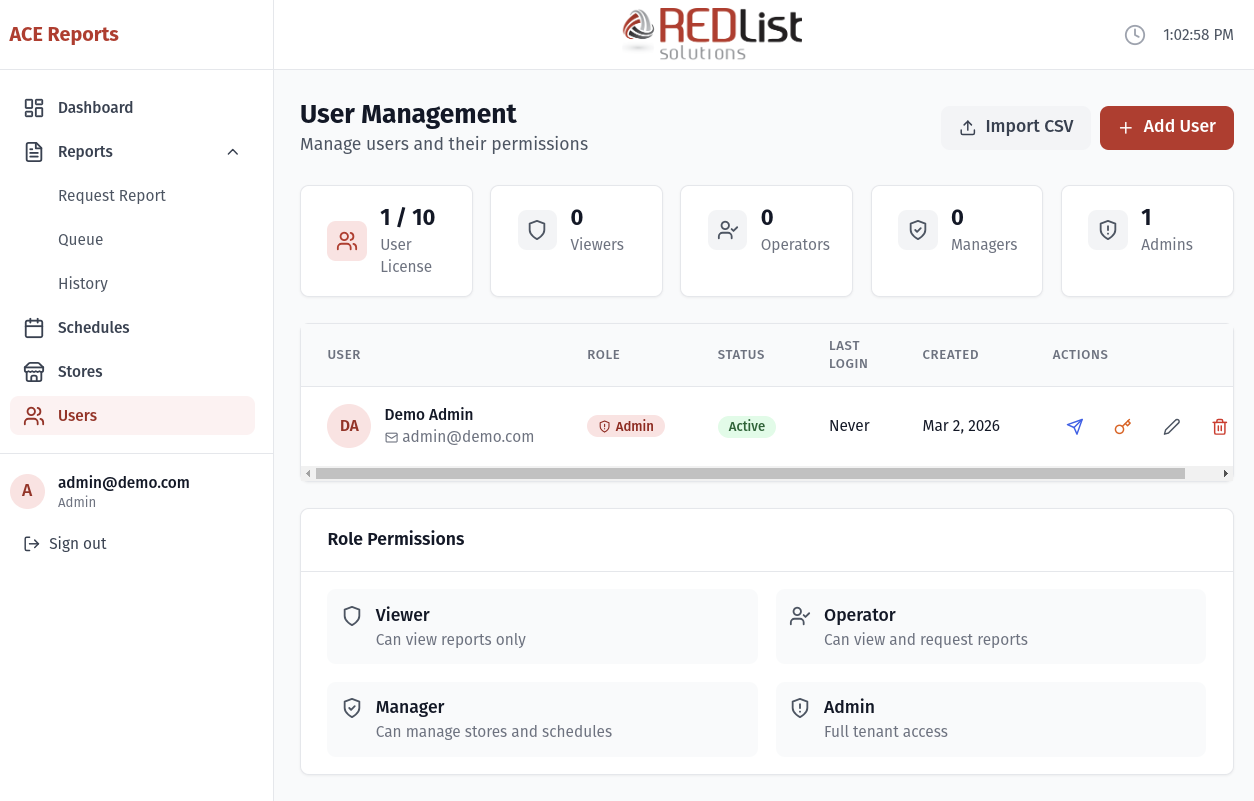
Click "Users" in the sidebar to see all user accounts. The list shows:
- Name - User's full name
- Email - Login email address
- Role - Access level (Viewer, Operator, Manager, Admin)
- Status - Active or Inactive
- Last Login - When they last signed in
User Roles Explained
| Role | Permissions | Typical Use |
|---|---|---|
| Viewer |
|
Accountants, auditors who only need to view reports |
| Operator |
Everything Viewer can do, plus:
|
Store managers who need to run daily reports |
| Manager |
Everything Operator can do, plus:
|
Regional managers, IT staff |
| Admin |
Full access including:
|
System administrators |
Creating a New User
-
Click "Add User"
Click the blue "Add User" button in the top right. -
Enter user details
- Email - Their login email address (must be unique)
- First Name - User's first name
- Last Name - User's last name
- Password - Initial password (user should change it)
- Role - Select appropriate access level
-
Click "Create User"
The account will be created immediately. -
Share credentials
Securely communicate the email and temporary password to the user.
Editing a User
To modify a user's settings:
- Click the edit icon (pencil) next to the user
- Update their name, role, or other details
- Click "Save Changes"
Resetting a Password
If a user forgets their password:
- Click the edit icon next to their account
- Enter a new password in the password field
- Click "Save Changes"
- Securely share the new password with the user
Deactivating a User
To temporarily disable a user's access without deleting their account:
- Click the edit icon next to the user
- Toggle "Active" to off
- Click "Save Changes"
Deactivated users cannot log in but their account remains in the system. You can reactivate them later if needed.
Deleting a User
To permanently remove a user:
- Click the delete icon (trash can) next to the user
- Confirm the deletion
Store-Level Permissions
By default, users can access all stores. You can restrict a user to specific stores:
- Edit the user
- In the "Store Access" section, select specific stores
- Save changes
Once restricted, the user will only see those stores in the dashboard, report requests, and history.
User License
Your organization has a limit on the number of users that can be created. Check the license information at the top of the Users page to see:
- Current users / Maximum allowed
- Available seats remaining
If you've reached your limit and need more users, contact your account manager about upgrading your plan.